Data Safety
This page answers the uncomfortable questions: what is guaranteed, what isn’t, and what to do when something goes wrong. It assumes you’ve read How it works — in particular the three-copies model (RAM / snapshot / folder).
When exactly is my data saved to real storage?
For a volume with Save to Disk on unmount enabled (the default):
- At eject — in-app eject, Finder eject, quitting the app, or a clean macOS shutdown (which quits the app): the app copies RAM → snapshot, unmounts, then mirrors snapshot → your folder.
- At each periodic sync tick (if enabled): RAM → snapshot only. The folder is not touched until the next eject.
That’s the whole list. Between those moments, changes on the RAM disk exist in RAM only.
With Save to Disk off, nothing is ever saved: eject discards the disk’s contents by design. The app treats such volumes as pure scratch space and won’t prompt about them at quit.
Is periodic sync a continuous mirror?
No — two important limits:
- It runs on an interval you choose (15 minutes by default, when enabled), not on every file change. Work done since the last tick is unprotected.
- It updates the app’s snapshot, not your folder. After a hard crash the folder is stale; the snapshot holds the last tick’s data — and rescuing it requires care, as described next.
My Mac crashed / lost power / hard-rebooted while a disk was mounted. What survives?
A hard stop runs no save. What’s on disk afterwards:
- Your folder contains what it held at the last completed save (usually: what the disk had when it was last mounted).
- The snapshot contains the last periodic-sync tick (if periodic sync was on) — potentially much newer than the folder.
- The RAM contents since then are gone. Nothing can bring those back.
Critical: if the snapshot may be newer than your folder, copy it out BEFORE mounting the volume again.
Mounting refreshes the snapshot from the folder — the folder is treated as the source of truth (that’s what makes your offline folder edits and deletions stick). After a crash, the folder is stale, so the very next mount overwrites the newer snapshot with old data. The recovery window closes the moment you remount.
To rescue it: open ~/Library/Application
Support/Persist/sync/ in
Finder and copy the whole snapshot folder somewhere safe.
Then remount and merge by hand.
One clarification to lower the stakes: if only the app crashed (or was force-quit) while the disk stayed mounted, the RAM disk itself survives — tmpfs mounts belong to the kernel, not the app. Relaunch the app and eject normally; nothing is lost.
What happens if a save fails?
The save sequence is RAM → snapshot → unmount → snapshot → folder. The risky moment is after the unmount: RAM is already gone, the folder still shows old content, and the session’s work exists in exactly one place — the snapshot.
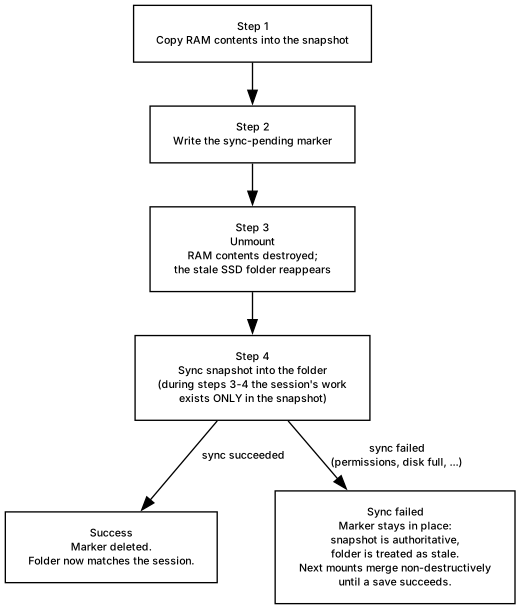
The eject-with-save sequence and its one risky window.
If the final snapshot → folder mirror fails (permissions, disk full, locked files), the app:
- keeps the volume unmounted and shows an error explaining the situation;
- leaves a “mirror pending” marker next to the snapshot. While that marker exists, the app knows the folder is stale and the snapshot is authoritative — a crash at any point in this window fails safe.
While the marker is in place, remounting is deliberately conservative:
- The snapshot is not overwritten from the stale folder. Files you hand-added to the folder in the meantime are merged in, but nothing in the snapshot is deleted or replaced.
- Side effect to be aware of: files you deleted during the failed session can reappear on the next mount (they’re still in the stale folder, and the non-destructive merge won’t drop them). Annoying, but chosen over the alternative of losing hand-added files.
The marker clears itself the first time a save completes successfully. Most mirror failures are transient (fix permissions or free disk space, then eject again) — the app even auto-repairs one common cause, files carrying the “locked” Finder flag, by clearing the flag and retrying once.
I deleted a RAM disk with “keep files” and something failed. Where are my files?
Deleting a volume while keeping its files runs the same save flow first. If the final mirror to your folder fails during a delete, the app does not discard the snapshot with the rest of its bookkeeping. Instead it moves the whole thing to a quarantine folder:
~/Library/Application Support/Persist/recovered/<name>-<timestamp>/
and shows an alert with a Show in Finder button
pointing at it. Your session data is in there under
latest-content/snapshot/. Copy it wherever it belongs once
you’ve fixed whatever blocked the mirror (permissions, disk space, Full
Disk Access).
The same quarantine protects you if the app finds leftover sync data for a volume it’s removing.
What does the app do at quit if disks are still mounted?
Quitting shows one window listing every mounted volume that needs saving, and behaves in a way worth understanding:
- Volumes not blocked by any app start saving immediately and in parallel — before you click anything. If nothing blocks any volume, the whole quit is hands-free: the window is just progress feedback.
- Volumes held open by other apps wait for your consent, because proceeding means quitting those apps (see Mounting & ejecting).
- Cancel does not undo completed ejects. Saving-then-ejecting is non-destructive (your data is in the folder), so volumes that already finished stay ejected; only in-flight work is stopped. Remount them from the app if you want them back.
- If a volume’s save fails, the summary offers Quit Anyway or Stay. Choosing Quit Anyway leaves that volume’s mirror-pending protection in place (see above) — your data is in the snapshot, not lost, and the next mount treats it as authoritative.
Does ejecting from Finder skip the save?
No. The app intercepts eject requests made outside the app (Finder,
diskutil, umount) for volumes with Save to
Disk enabled, runs the same save, and completes the eject itself. Finder
may briefly report “eject failed” while this happens — see Mounting & ejecting for why
that message is harmless.
The blunt summary — what should I actually rely on?
- Rely on: eject/quit saves; the folder’s contents after a clean eject; periodic sync limiting how much a crash can cost you — provided you rescue the snapshot before remounting after a hard crash.
- Do not rely on: RAM contents surviving power loss; the snapshot as a long-term backup; deleted-file removal sticking when a save failed mid-flight.
- Best practice for data you care about: keep Save to
Disk on, enable periodic sync with a short interval, keep the mount
folder inside your normal backup scope, and back up
~/Library/Application Support/Persist/sync/as well.