How Persist Actually Stores Your Data
This is the most important page in the Help Center. Nearly every question of the form “why did the app do that?” is answered by the model below.
The mount trick: your folder gets covered, not converted
A RAM disk in this app is mounted on top of an ordinary
folder you choose (the “mount path” — say
~/FastScratch). That has a consequence people don’t
expect:
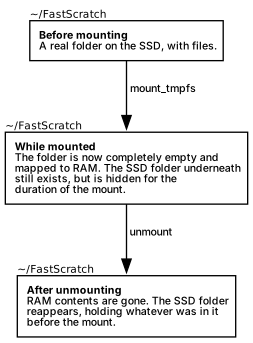
The same path shows two different things depending on mount state.
Nothing you do at that path while mounted touches the SSD folder — until a save runs.
The three copies of your data
For a volume with Save to Disk enabled, your data can exist in up to three places:
| Copy | Where | Survives eject / reboot? |
|---|---|---|
| RAM | The mount path, while mounted | No — gone the moment the disk unmounts |
| Snapshot | ~/Library/Application Support/Persist/sync/<name>-<id>/latest-content/snapshot/ |
Yes — a normal folder |
| Folder | The mount path, while unmounted (the SSD folder) | Yes |
The snapshot is the app’s private staging copy. It exists because once the RAM disk is mounted, the SSD folder is hidden — the app needs a place reachable on both sides of the mount boundary to carry data across.
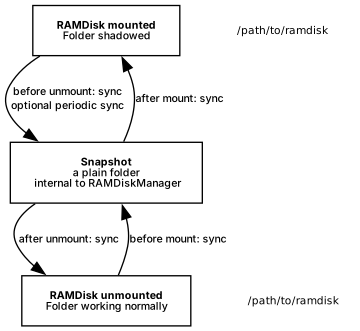
How data moves between the three copies.
What the app does with these copies:
- On eject (with Save to Disk on): RAM → snapshot, then unmount, then snapshot → folder. When it finishes, your folder matches what was in RAM.
- On mount: folder → snapshot (refresh), then mount, then snapshot → RAM (restore). When it finishes, the RAM disk matches your folder.
- Periodic sync (optional): RAM → snapshot only. Your folder is not updated while mounted — see the question below.
While my disk is unmounted, can I edit the folder directly?
Yes — and this is deliberate. While unmounted, the folder is the source of truth. Anything you add, change, or delete in the folder is faithfully reflected on the next mount. This has a sharp edge:
If you empty the folder while the volume is unmounted, the next mount comes up empty. The app treats the deletion as intentional and updates its snapshot to match. The snapshot is a bridge, not a backup — it will not resurrect files you removed from the folder.
The one exception: if the previous save failed partway (the app tells you when this happens), the snapshot temporarily becomes the authoritative copy and the folder is treated as stale until a save succeeds. See Data safety.
I enabled periodic sync — why isn’t my folder updating?
Because while the volume is mounted, periodic sync copies RAM to the app’s snapshot, not to your folder. Writing to the folder underneath a mounted disk would be invisible anyway (the mount hides it). Your folder is refreshed in one place only: the save that runs at eject/quit.
Practical consequences:
- Backup tools (Time Machine, cloud sync) watching your
folder see stale content while the disk is mounted. If
you want periodic-sync data captured by backups, include
~/Library/Application Support/Persist/sync/in the backup. - After a crash, the newest copy of your data may be the snapshot, not the folder — and recovering it requires acting before the next mount. This is important enough that it has its own section.
Which files are never synced?
The sync engine deliberately ignores macOS metadata artifacts, in both directions:
.VolumeIcon.icns.fseventsd,.Trashes,.Spotlight-V100- anything starting with
.com.apple.
If you’re comparing the folder and the mounted disk file-by-file and the counts differ by a few hidden entries, this is why. Don’t store real data in files named like Apple metadata — it won’t be carried across.
Is the snapshot a second copy I can rely on as a backup?
No. Treat it as internal plumbing with one useful property: it survives unmounts and crashes, so in several failure scenarios it holds the only good copy of your last session, and the app (or you, manually) can recover from it. But in normal operation it is routinely overwritten from the folder at every mount — it is not a history, not versioned, and not a substitute for a real backup of the folder.
Does the app sync file permissions, dates, and attributes?
Sync is performed by an embedded copy of rclone operating on local folders. File contents and structure are preserved. By default the app also preserves modification times on the destination and verifies copies by checksum; both behaviors are per-volume toggles (see Per-volume options).
Apple specific metadata (Finder labels/xattrs on individual files, ACLs) will be preserved if you use your local drive as sync storage. Remote storages however, don’t support them and you will loose them on the next mount.
If a volume has remote storage attached, the save targets that instead — see Remote storage for the details, including offline behavior.